Set up an Outlook Signature: Step-by-Step Guide 2026
Set up a professional signature in Outlook, with logo, image and mobile preview. Step by step for Outlook desktop, web and the mobile app.
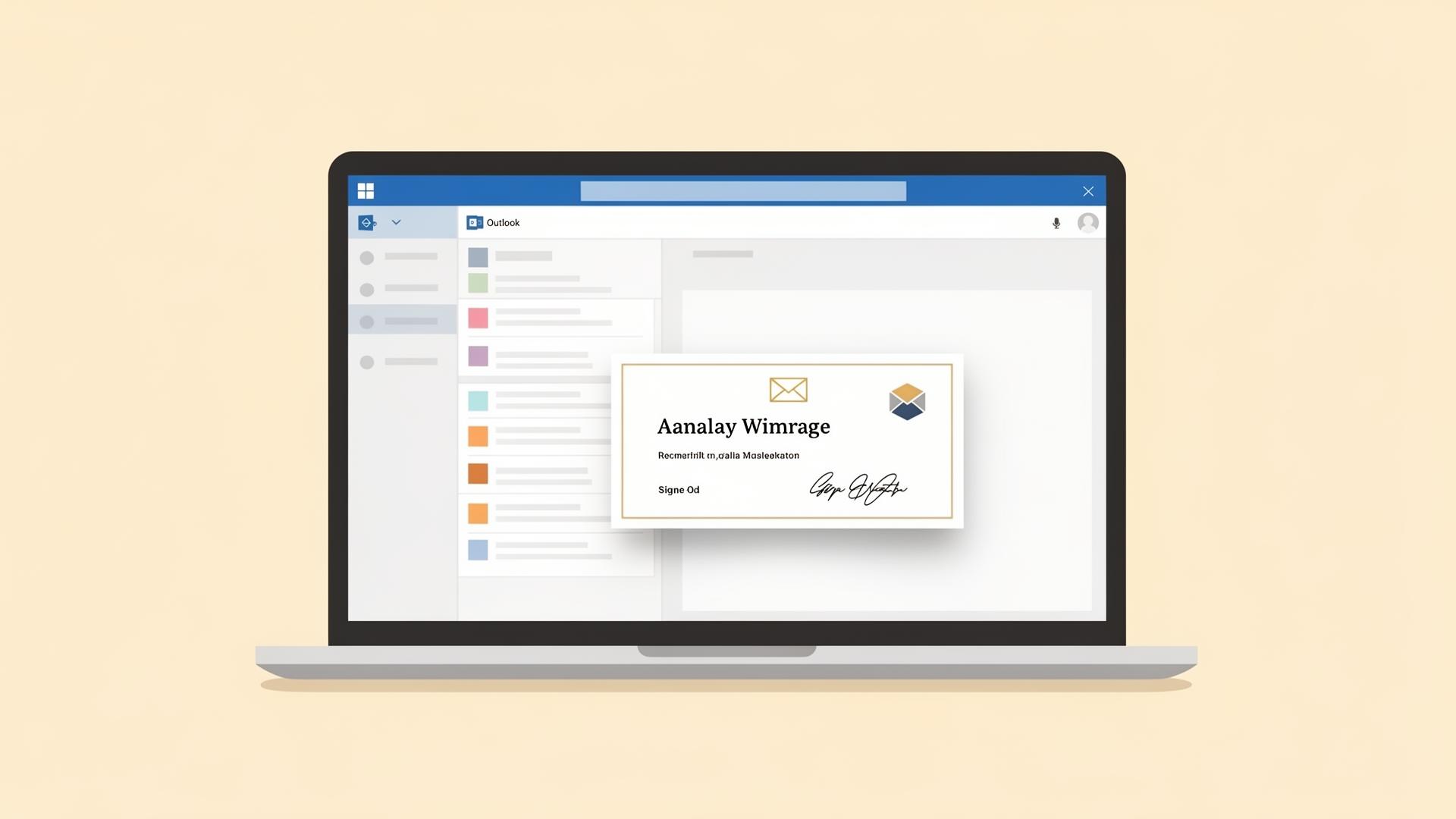
Setting up an Outlook signature the right way takes just a few minutes and makes every email look professional. This guide covers Outlook for Windows, Outlook on the web and the mobile app.
Outlook for Windows
- Open Outlook and go to File, then Options.
- Choose Mail and click Signatures.
- Click New, enter a name and design your signature.
- Set the default for new messages and replies.
- Save and close.
Outlook on the web
- Open Settings (gear icon) and go to Mail, then Compose and reply.
- Create a new signature, paste your design and save.
Outlook mobile app
Open the app, tap your profile, then Settings, then Signature. The mobile signature is separate from desktop. Keep both consistent.
Logo and images
Add images via the toolbar or paste them in. Keep logos under 200 pixels wide, use PNG with transparent background, and test the result on mobile.
Common pitfalls
- Mixed fonts and colors
- Oversized logos
- Long legal disclaimers that overpower the message
- Missing mobile test
Faster with a generator
signaturly creates the signature for you, with EU hosting and clean templates. Copy once and paste into Outlook.
Conclusion
A polished Outlook signature is easy to set up. Keep it short, brand-consistent and tested on every device.